

Automating repetitive tasks can save time and make your digital work much easier, especially when it comes to frequent clicking or tapping. Whether you are using a computer or a smartphone, learning how to Automate Mouse Clicks can help improve productivity and reduce manual effort.
Many users struggle with repetitive actions in games, data entry, or testing tasks, which can become tiring over time. By using simple tools and the right setup, you can automate these actions efficiently.
In this guide, you will learn how to Automate Mouse Clicks on both PC and mobile devices with easy steps, helping you work smarter, faster, and with better accuracy.
Table of Contents
What is Automate Mouse Clicks?
Automate Mouse Clicks means using software tools to automatically perform mouse clicks on your computer or taps on a mobile device without manual effort. Instead of physically clicking again and again, an automation tool (like an Auto Clicker) simulates those actions based on settings you choose, such as:
- Click speed (interval)
- Click type (left, right, double)
- Click location (fixed position or cursor)
- Number of repetitions
Simple Example:
If you need to click a button 1000 times, instead of doing it manually, you can automate it—your system will do it for you automatically.
Where it is used:
- Repetitive web actions
- Gaming (idle/clicker games)
- Data entry tasks
- Software testing
Why You Should Automate Mouse Clicks?
There are several reasons to Automate Mouse Clicks:
- Save Time: Repetitive tasks can be completed faster.
- Reduce Effort: No need for continuous manual clicking.
- Increase Productivity: Focus on complex tasks while automation handles simple ones.
- Improve Accuracy: Automated clicks reduce human errors.
How to Automate Mouse Clicks on PC?
Automating clicks on a PC is simple with the right tools.
Step 1: Choose an Auto Clicker Tool
To Automate Mouse Clicks, you need reliable software. Popular tools include:
- MT Auto Clicker
- OP Auto Clicker
- GS Auto Clicker
These tools are easy to install and use.

Step 2: Install the Software
Download the tool from an official website and install it on your PC.
Step 3: Configure Settings
Set the following:
- Click interval (e.g., 100 ms)
- Click type (left/right)
- Repeat mode (fixed/infinite)
Proper configuration helps you automate mouse clicks effectively.
Step 4: Set Click Position
Choose where the clicks will happen:
- Current cursor location
- Fixed screen position
For accuracy, a fixed position is recommended.
Step 5: Assign Hotkey
Set a shortcut key to start and stop the auto clicker easily.
Step 6: Start Automation
Press the hotkey to begin. The software will now Automate Mouse Clicks based on your settings.
How to Automate Mouse Clicks on Mobile?
Automating clicks on mobile devices (Android) is slightly different.
Step 1: Install the Auto Clicker App
Download an Auto Clicker app from the Google Play Store.
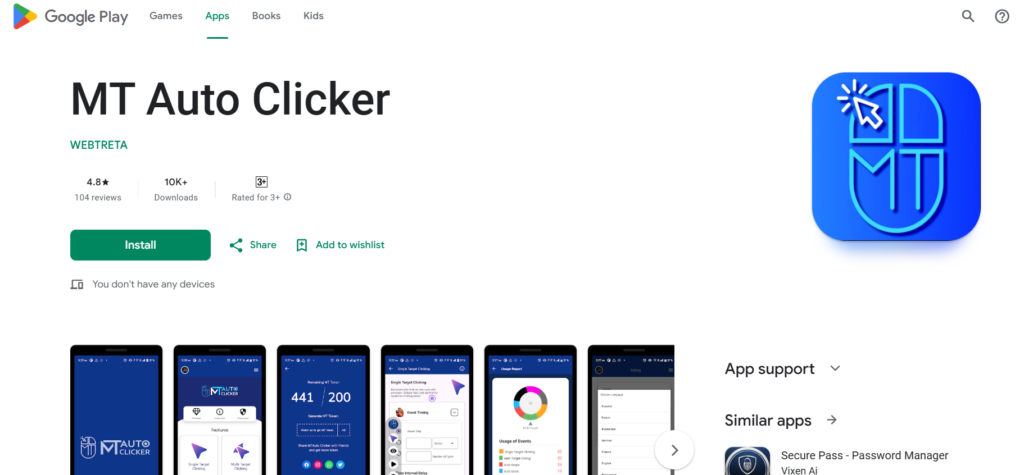
Example:
- Auto Clicker – Automatic Tap
Step 2: Enable Accessibility Permissions
Mobile auto clickers require special permissions to function.
Go to: Settings → Accessibility → Enable Auto Clicker
Step 3: Configure Tap Settings
Set:
- Tap interval
- Tap location
- Number of repetitions
Step 4: Start the Tool
Activate the app, and it will begin automating mouse clicks (taps) on your screen.
Best Settings for Efficient Automation
To effectively Automate Mouse Clicks, use these settings:
For Gaming:
- Interval: 10–50 ms
- Mode: Infinite
- Position: Fixed
For Work:
- Interval: 100–500 ms
- Mode: Controlled
- Position: Fixed
Tips to Automate Mouse Clicks Effectively
- Start with moderate speed.
- Test settings before use.
- Avoid extremely fast intervals.
- Use fixed positions for accuracy.
- Monitor system performance
Following these tips ensures smooth Automate Mouse Clicks functionality.
Common Issues and Fixes
1. Clicks Not Working
- Check permissions
- Ensure correct position
2. Tool Not Starting
- Run as administrator
- Restart device
3. System Lag
- Increase interval
- Close background apps
These issues can affect your ability to Automate Mouse Clicks efficiently.
Safety and Best Practices
While automation is useful, follow these precautions:
- Avoid using on sensitive websites.
- Do not use in competitive games.
- Download apps from trusted sources.
- Follow platform rules
Responsible usage helps you safely Automate Mouse Clicks.
Advantages of Automating Mouse Clicks
- Saves time
- Reduces manual effort
- Improves productivity
- Ensures consistent performance
- Easy to set up
Limitations to Consider
- Not suitable for complex tasks
- May violate some platform policies
- Risk of misuse
- Requires proper configuration
Advanced Automation Options
For advanced users:
- Multi-Click Setup: Click multiple points automatically.
- Script-Based Automation: Combine clicks with keyboard inputs.
- Randomized Clicks: Simulate human behavior.
These features enhance how you Automate Mouse Clicks.
When to Use Automation?
Best use cases:
- Repetitive tasks
- Idle games
- Software testing
- Simple workflows
Avoid automating tasks that require human judgment.
Conclusion
Learning how to Automate Mouse Clicks on PC and mobile can significantly improve your efficiency and productivity. With the right tools, proper setup, and safe practices, you can automate repetitive tasks effortlessly.
Whether you are using an MT Auto Clicker on a PC or a mobile auto clicker app, the process is simple and highly effective. By following the steps and tips in this guide, you can optimize your workflow and make automation work for you.
Start with basic settings, test thoroughly, and gradually improve your setup. With the right approach, automating clicks can become a powerful part of your daily routine.