
In today’s fast-paced digital environment, automation tools have become essential for improving productivity and reducing repetitive manual work. One such powerful yet simple tool is an auto clicker.
If you frequently perform tasks that involve continuous mouse clicking, an auto clicker for PC can save you time, effort, and even prevent physical strain.
This comprehensive guide will walk you through everything you need to know about auto clicker for PC, including what they are, how they work, where to download them, and step-by-step installation instructions.
Table of Contents
What is an Auto Clicker For PC?
An Auto Clicker is a software application that automates mouse clicks on your computer. Instead of manually clicking your mouse repeatedly, the tool performs clicks automatically based on settings you define.
These tools simulate real mouse actions such as:
- Left-click
- Right-click
- Double-click
- Continuous clicking at set intervals
Auto clickers are commonly used on Windows PCs but are also available for other operating systems.
Why Use an Auto Clicker For PC?
There are several reasons why users rely on auto clickers:
- Repetitive Tasks Automation: If your work involves repeatedly clicking the same button, an auto clicker can handle it efficiently.
- Gaming Advantage: Many PC games require repetitive clicking. Auto clickers can help reduce effort and improve performance.
- Software Testing: Developers use auto clickers to simulate user behavior and test application responsiveness.
- Reducing Physical Strain: Continuous clicking can cause fatigue or even injuries. Auto clickers help minimize strain on your fingers and wrist.
How Does an Auto Clicker Work?
Auto clickers work by sending virtual mouse input signals to your operating system. These signals are recognized by applications as real clicks.
The core components include:
- Click interval: Time between clicks.
- Click type: Left, right, or double click
- Repeat mode: Fixed number or infinite
- Cursor position: Current or predefined location
Once configured, the tool continuously executes clicks until stopped.
Best Auto Clicker Software For PC
There are several reliable auto clicker tools available. Some popular ones include:
1. OP Auto Clicker
- Free and easy to use
- Supports hotkeys
- Customizable intervals
2. GS Auto Clicker
- Lightweight
- Simple interface
- Ideal for beginners
3. Free Mouse Clicker
- Minimal setup
- Good for basic tasks
Always download software from official or trusted websites to avoid security risks.
System Requirements
Most auto clickers are lightweight and run smoothly on basic systems.
Minimum Requirements:
- Windows 7/8/10/11
- 2GB RAM
- Basic processor
- Minimal storage space
No high-end hardware is required.
Step-by-Step Guide to Download Auto Clicker For PC
Follow these steps to safely download an auto clicker:
Step 1: Choose a Trusted Tool
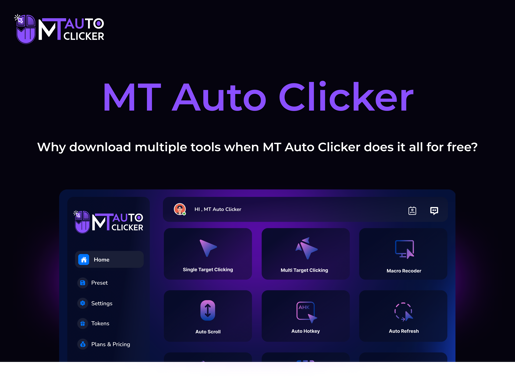
Select a reliable option like MT Auto Clicker based on your needs.
Step 2: Download the Installer
Click on the download button and save the file to your PC.
Step 3: Scan the File
Before opening, scan the file using antivirus software to ensure it is safe.
Step-by-Step Installation Process
Once downloaded, follow these steps to install the auto clicker:
Step 1: Open the Installer
Locate the downloaded file (usually in the Downloads folder) and double-click it.
Step 2: Allow Permissions
If prompted, click “Yes” to allow installation.
Step 3: Follow Setup Instructions
- Accept terms and conditions
- Choose installation location
- Click “Install”
Step 4: Complete Installation
After installation is complete, click “Finish” to launch the program.
How to Use an Auto Clicker For PC?
After installation, using an auto clicker is straightforward.
Step 1: Open the Software
Launch your Auto Clicker application.
Step 2: Configure Settings
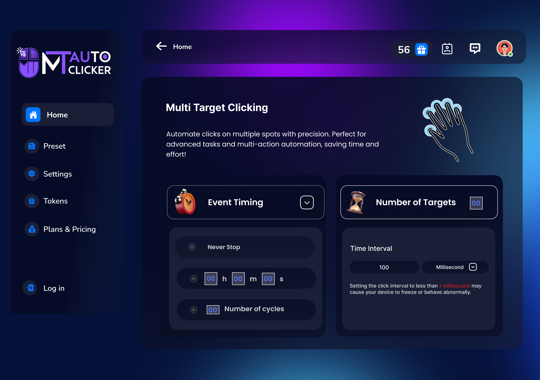
Set your preferences:
- Click interval (e.g., 1 second)
- Click type (left/right)
- Repeat mode
Step 3: Set Click Position
Choose whether clicks happen at:
- Current cursor location
- Fixed position
Step 4: Assign Hotkey
Set a shortcut key (e.g., F6 or F8) to start/stop the clicking.
Step 5: Start Clicking
Press the hotkey to begin automation. Press again to stop.
Tips for Best Performance
To get the most out of your auto clicker:
- Start with slower click intervals.
- Avoid extremely fast speeds (below 50 ms)
- Close unnecessary applications
- Test settings before using on important tasks
Safety Tips While Using Auto Clickers
Although auto clickers are useful, improper use can cause issues.
- Avoid Sensitive Websites: Do not use auto clickers on banking or personal accounts.
- Follow Platform Rules: Some games and websites prohibit automation.
- Use Trusted Software Only: Avoid unknown sources to prevent malware risks.
- Monitor System Performance: Excessive clicking can slow down your PC.
Common Issues and Troubleshooting
Problem 1: Auto Clicker Not Working
- Restart the application
- Run as administrator
Problem 2: Clicks Not Registering
- Ensure the correct window is active.
- Check cursor position settings.
Problem 3: Software Crashing
- Increase click interval
- Update the software
Problem 4: Hotkey Not Responding
- Change shortcut key
- Check for conflicts with other programs.
Advantages of Auto Clickers
- Saves time on repetitive tasks
- Improves efficiency
- Easy to install and use
- Reduces physical strain
- Useful for testing and automation
Disadvantages to Consider
- May violate terms of service
- Risk of malware if downloaded from untrusted sources
- Can cause system lag if misused
- Limited to basic automation
Auto Clicker vs Advanced Automation Tools
Auto clickers are simpler than advanced tools like RPA software.
- Auto clickers focus only on mouse actions.
- Advanced tools automate complete workflows.
- Auto clickers are beginner-friendly
- RPA tools require technical knowledge
For most users, auto clickers are sufficient for basic automation needs.
Conclusion
Auto clicker for PC are powerful tools that can simplify repetitive tasks, boost productivity, and reduce physical effort. Whether you are a gamer, developer, or everyday user, these tools can make your workflow more efficient.
By choosing trusted software like MT Auto Clicker, following proper download and installation steps, and using it responsibly, you can take full advantage of what auto clickers offer.
Always remember to use automation ethically and in accordance with the rules of the platforms you interact with. With the right approach, an auto clicker can become an essential part of your digital toolkit.