

In 2026, web-based tools are more powerful than ever, and one category that continues to grow in popularity is the web browser auto clicker.
Whether you are playing online clicking games, automating repetitive browser actions, or testing web applications, a browser auto clicker offers a simple and efficient solution without the need for heavy software installation.
This guide explains what a web browser auto clicker is, how it works, and how to set it up across platforms like Windows, macOS, and mobile browsers.
By the end of this article, you will clearly understand how to use an online auto clicker safely and effectively in 2026.
Table of Contents
What Is a Web Browser Auto Clicker?
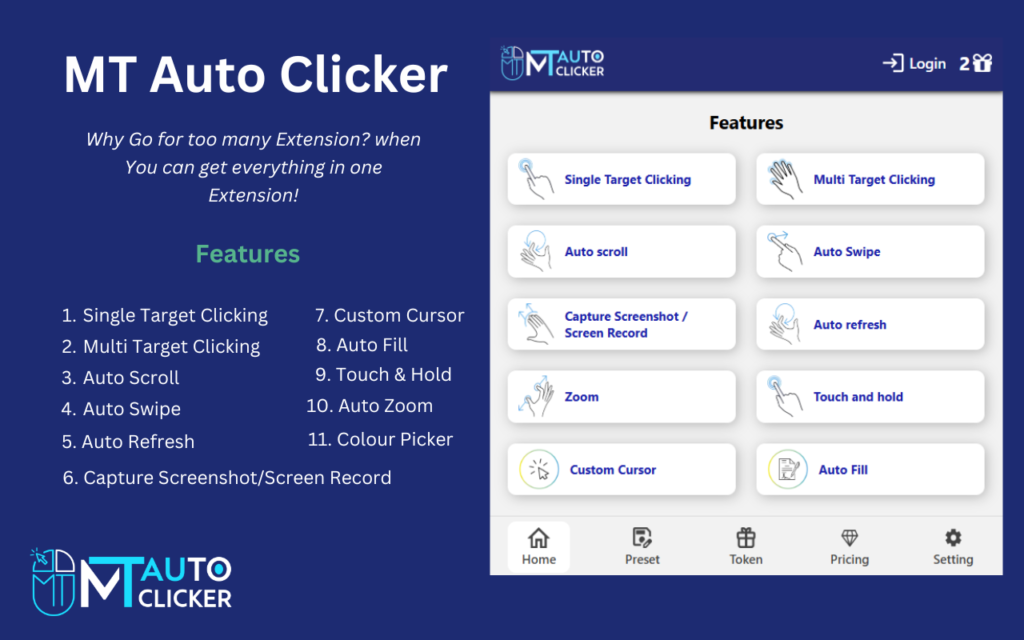
A web browser auto clicker is a tool that automates mouse clicks directly inside a web browser. Instead of manually clicking a button, link, or game element repeatedly, the tool performs clicks automatically based on user-defined settings such as speed, interval, and target location.
Unlike traditional desktop auto clickers, a browser auto clicker works entirely online. This makes it lightweight, accessible, and compatible with multiple devices and operating systems.
Key Characteristics
- Runs inside a browser (Chrome, Edge, Firefox, Safari)
- No installation or minimal setup
- Works on multiple platforms
- Ideal for web-based games and tasks
Why Use an Online Auto Clicker in 2026?
As more applications move to the web, the demand for online clicking automation continues to increase. In 2026, users prefer tools that are fast, safe, and accessible from anywhere.
Here are the main reasons people choose a web auto clicker:
1. Cross-Platform Compatibility
A web based auto clicker works on:
- Windows
- macOS
- Chromebooks
- Tablets and mobile browsers (limited functionality)
2. No Installation Hassle
You don’t need admin access or software downloads. A browser clicking tool runs instantly.
3. Safe and Lightweight
Most online auto clicker tools don’t access system files, reducing security risks.
4. Perfect for Web Tasks
They are ideal for:
- Clicking games
- Repetitive form submissions
- Button testing
- UI automation demos
Common Use Cases for Browser Auto Clickers
🎮 Clicking Games

Games like Cookie Clicker, Spacebar Clicker, and idle browser games benefit greatly from browser clicking automation. Automatic clicks help players progress faster and unlock upgrades efficiently.
🧪 Web Testing
QA testers use web automation clicker tools to simulate repeated user actions and test UI behavior.
📊 Productivity Tasks
From clicking refresh buttons to submitting repeated entries, online clicking automation saves time and effort.
Types of Web Browser Auto Clickers
Understanding the types helps you choose the right tool.
1. Script-Based Auto Clickers
- Use JavaScript
- Run in browser console or extensions
- More control but require technical knowledge
2. Extension-Based Auto Clickers
- Installed from browser stores
- Easy UI
- Persistent settings
3. Website-Based Auto Clickers
- Fully online
- No installation
- Best for beginners
Each type serves different needs, but in 2026, website-based browser auto clickers are the most popular due to simplicity.
Cross-Platform Setup Guide (Step by Step)
Step 1: Choose a Compatible Browser
Most auto clicker for web browsers works best on:
- Google Chrome
- Microsoft Edge
- Mozilla Firefox
Ensure your browser is updated to the latest version.
Step 2: Open a Trusted Online Auto Clicker
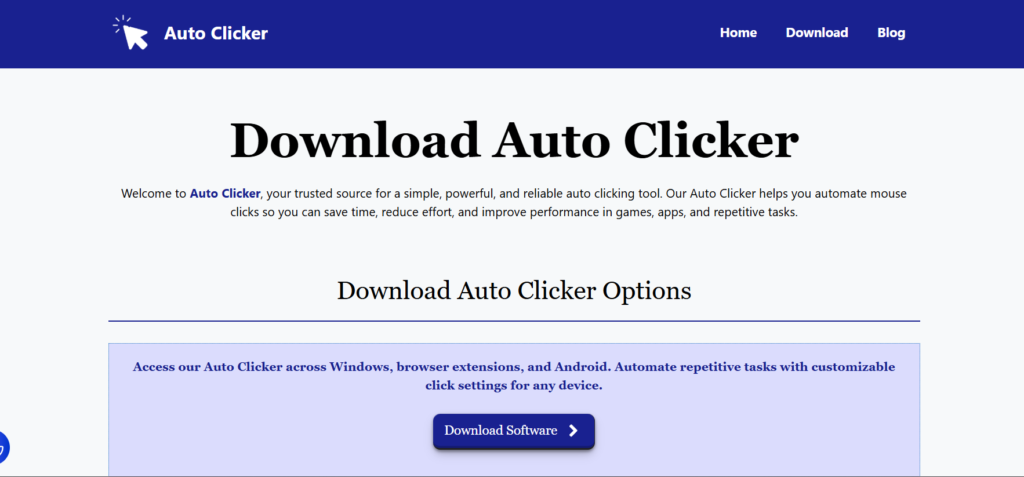
Visit a our web based auto clicker platform. Avoid unknown sources that ask for unnecessary permissions.
Step 3: Configure Click Settings
Typical configuration options include:
- Click interval (milliseconds or seconds)
- Click type (left, right)
- Click position (fixed or cursor-based)
- Start/stop hotkey (if supported)
This step is crucial for accurate browser auto clicker setup.
Step 4: Select the Target Area
- For games: target the main clickable object
- For tasks: select the button or area
Ensure the browser tab remains active.
Step 5: Start Automation
Activate the online clicking automation and monitor performance. Adjust speed if needed to avoid detection or errors.
Platform-Specific Notes
🍎 macOS
- Works smoothly with Chrome and Safari
- May require permission for extensions
📱 Mobile Browsers
- Limited support
- Best used with touch-based click simulation
- Not ideal for high-speed clicking
Best Practices for Using a Browser Clicking Tool
To get the best results from a web automation clicker, follow these tips:
- Start with slower click intervals
- Avoid extremely fast clicking on websites with limits
- Use trusted platforms only
- Do not use on secure or financial websites
- Respect website terms of service
Is Using an Online Auto Clicker Safe?
Generally, yes—if used responsibly.
A browser auto clicker is safe when:
- It does not ask for sensitive permissions
- It runs locally in your browser
- It does not track personal data
Avoid tools that require login credentials or access to private accounts.
Browser Auto Clicker vs Desktop Auto Clicker
| Feature | Browser Auto Clicker | Desktop Auto Clicker |
| Installation | No / Minimal | Required |
| Platform Support | Cross-platform | OS-specific |
| Use Case | Web tasks | System-wide |
| Security | Safer | Depends on source |
For web-only tasks, a web browser auto clicker is usually the better choice.
Future of Web-Based Auto Clicking
In 2026 and beyond, we can expect:
- AI-assisted clicking tools
- Smarter detection avoidance
- Better mobile support
- Deeper browser integration
The online auto clicker space will continue to evolve with web technologies.
Final Thoughts
A web browser auto clicker is one of the most practical automation tools available in 2026. It offers speed, simplicity, and cross-platform compatibility without the complexity of traditional software.
Whether you are a gamer, tester, or productivity enthusiast, using a browser auto clicker can save time, reduce effort, and improve efficiency—when used responsibly.
By following this cross-platform setup guide, you can confidently start using a web based auto clicker and take full advantage of modern online clicking automation tools.